IGNOU ID card download with enrollment no is an important process for students enrolled at Indira Gandhi National Open University (IGNOU). The IGNOU identity card serves as proof of student enrollment and may be required for examinations, practical sessions, study centre visits, library access, and other university-related activities.
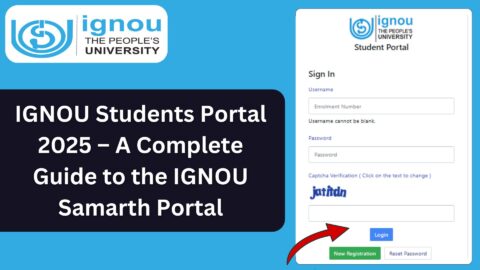
If you have recently taken admission to IGNOU and want to download your ID card, you can use the official IGNOU Samarth student portal. Students can log in to their accounts using their registered login credentials and look for the ID card download option.
In this article, you will learn how to download your IGNOU ID card using your enrollment number, how to access the Samarth portal, what to do if you cannot log in, and how to solve common ID card download problems.
IGNOU ID Card Download with Enrollment Number 2026
Students can access the IGNOU student portal to check their admission-related information and download available student documents. However, having an enrollment number alone may not always be sufficient to log in. You may also need your registered username or email address and password, depending on your portal account.
To access the official student portal, use the following link:
Official IGNOU Samarth Portal: https://ignou.samarth.edu.in/
After logging in, check the available student services or profile section for the identity card download option. The exact menu or document availability may depend on your admission status and the portal interface.
Before proceeding, make sure that your admission has been confirmed and that you are using the correct student account.
Important Links and Information for IGNOU ID Card Download
The following table contains useful links and information for students who want to download their IGNOU identity card.
| Particulars | Details |
|---|---|
| University name | Indira Gandhi National Open University |
| Commonly used abbreviation | IGNOU |
| Document name | IGNOU Student ID Card |
| Academic year | 2026 |
| Main purpose | Proof of student identity and enrollment |
| Official student portal | https://ignou.samarth.edu.in/ |
| Login information | Registered login credentials |
| Enrollment number | The enrollment number allotted by IGNOU |
| Download method | Log in and locate the available ID card option |
| Required device | Mobile phone, laptop, or desktop |
| File format | Usually PDF, depending on the available download option |
| Printing option | Print the downloaded ID card if required |
| Admission requirement | Admission should be processed and the document should be available |
| Help for login issues | Use the portal’s available password recovery or support options |
What Is an IGNOU ID Card?
An IGNOU ID card is an official student identity document associated with your enrollment at Indira Gandhi National Open University. It helps identify you as a student of the university and may contain information such as your name, enrollment number, programme, photograph, and other student details.
The information displayed on the ID card can vary depending on the format issued by the university and the student’s admission details.
Students should keep a digital copy of their identity card on their mobile phones or computers. It is also useful to maintain a printed copy for situations where a physical document is requested.
An IGNOU ID card is different from an admission confirmation, grade card, hall ticket, or examination result. Each document serves a separate purpose, so you should download the correct document for the task you need to complete.
How to Download IGNOU ID Card with Enrollment Number?
Follow these steps to access your IGNOU ID card through the official Samarth portal.
Step 1: Visit the Official IGNOU Samarth Portal
Open a web browser on your mobile phone, laptop, or desktop computer.
Visit the official portal using this link:
Always check that you are using the correct official website before entering your login credentials.
Step 2: Open the Student Login Page
Once the portal opens, look for the login section. Depending on the current portal interface, you may be asked to enter your username or another registered login identifier and password.
Use the credentials associated with your IGNOU student account.
Your enrollment number is an important identifier, but it should not automatically be assumed to be the username or password for every portal login.
Step 3: Enter Your Login Credentials
Enter the required login information carefully. Check for typing errors, unnecessary spaces, and incorrect capitalization where relevant.
If the portal asks for a username or registered email address, enter the information associated with your account. Then provide your password and complete any additional verification requested by the portal.
Do not share your password or verification codes with anyone.
Step 4: Log In to Your Student Account
After entering the required information, submit the login form.
If your credentials are correct, you should be able to access the available student services and account information.
If you receive an error message, do not repeatedly enter random credentials. Check your information and use the available account recovery options if necessary.
Step 5: Find the ID Card Download Option
After logging in, look for the student profile, student services, documents, or identity card section.
The exact menu name can vary depending on the portal’s current design and the services available to your account.
If an ID card download option is displayed, open it and check the information shown on the document.
If the ID card option is not available, your admission status, account access, or the portal’s current document availability may need to be checked.
Step 6: Download Your IGNOU ID Card
If the portal provides an option to download the identity card, select it and save the document to your device.
If the file opens in your browser instead of downloading automatically, use the browser’s download option to save it.
Keep the file in a folder where you can find it easily. You may also save a backup copy in a secure location.
Step 7: Check Your ID Card Details
After downloading the document, review the displayed information carefully.
Check the following details where they appear:
- Your name
- Your enrollment number
- Your programme details
- Your photograph
- Any other personal or admission information
If you notice a significant error, contact the university or the appropriate regional centre through an official channel rather than editing the identity card yourself.
Step 8: Print Your ID Card if Required
If your study centre or another university-related activity requires a printed identity card, open the downloaded file and print it.
Use a clear printout so that the photograph, name, enrollment number, and other details remain readable.
Keep the digital copy even after printing the document, as you may need it again in the future.
Can You Download the IGNOU ID Card Using Only Your Enrollment Number?
Many students search for an IGNOU ID card download option that requires only their enrollment number. However, the enrollment number and portal login credentials serve different purposes.
Your enrollment number identifies your student record. The student portal may require additional authentication to protect your personal information.
Therefore, if you know your enrollment number but cannot access your account, you should first check the portal’s login requirements.
You may need to use your registered username, email address, password, or another identifier accepted by the portal.
If you have forgotten your password, look for the password recovery option on the login page. Follow the instructions provided by the portal to recover access to your account.
Avoid using unofficial websites that claim to download your ID card simply by entering your enrollment number, especially if they request unnecessary personal information or payment.
How to Download the IGNOU ID Card on a Mobile Phone?
You do not necessarily need a computer to access your student account. You can try downloading the ID card on a mobile phone by following these steps.
- Open Chrome or another trusted browser on your mobile phone.
- Visit https://ignou.samarth.edu.in/.
- Open the student login page.
- Enter your registered login credentials.
- Access your account and locate the available ID card option.
- Open the document and download it if the option is available.
- Check your phone’s Downloads folder for the saved file.
- Open the document and confirm that the details are readable.
If the portal does not work correctly on your phone, try opening it on a laptop or desktop computer. You can also try the browser’s desktop-site option if the mobile layout is causing difficulty.
Make sure that you download the document from the official portal and store it securely.
What to Do If Your IGNOU ID Card Is Not Available?
Sometimes students can log in successfully but cannot find their identity card. This does not necessarily mean that their admission has been rejected.
Several factors may affect document availability.
1. Your Admission Is Still Being Processed
If you have recently applied for admission, the university may still be processing your application. Check your admission status before assuming that the ID card should already be available.
You can check the relevant admission information through the official IGNOU admission-status service:
https://isms.ignou.ac.in/changeadmdata/AdmissionStatusNew.ASP
2. You Are Using the Wrong Account
Students sometimes use different credentials for different university services. Make sure that you are accessing the appropriate student account and not another portal with different login requirements.
3. The ID Card Option Is Not Visible
Portal menus and document availability can change. Check the available account sections carefully. If the option is missing, consult the official portal’s support information or contact the relevant IGNOU regional centre.
4. Your Admission Information Needs Verification
If your admission is confirmed but the document remains unavailable, seek assistance from the university. Keep your application details and enrollment information available so that the relevant office can identify your record.
5. There Is a Temporary Technical Problem
The portal may occasionally fail to load or respond correctly. Try again later, use an updated browser, or switch to another device or internet connection.
Do not submit your personal details repeatedly on unfamiliar websites while trying to resolve the issue.
Difference Between IGNOU Enrollment Number and ID Card
The enrollment number and identity card are related, but they are not the same thing.
Your enrollment number is a unique student identifier assigned by the university. It helps identify your academic record and may be needed when checking admission status, assignment status, examination details, and other student information.
Your ID card is a student identity document that can display the enrollment number along with other relevant details.
You should keep your enrollment number safely recorded even after downloading your ID card. If you need help from the university, having your enrollment number available can make it easier to identify your student record.
Why Is the IGNOU ID Card Important?
The IGNOU ID card can be useful throughout your academic journey. Students should download and keep a copy when it becomes available.
Common reasons to keep your ID card include:
- Student identification: It helps establish your association with IGNOU.
- University-related activities: It may be requested when visiting a study centre or regional centre.
- Examination-related requirements: You may need it as an additional identity document where applicable.
- Practical sessions: Some programmes or centres may ask students to carry their university identity card.
- Personal records: It provides a convenient reference for your enrollment number and other displayed details.
- Future access: Keeping a digital copy reduces the need to repeat the download process.
Always follow the specific instructions issued for your examination, practical session, or study centre. An ID card does not replace an examination hall ticket or any other document specifically required by the university.
Tips for Keeping Your IGNOU ID Card Safe
After downloading your ID card, take a few precautions to protect it.
First, save the original file in a secure folder on your device. You can also maintain a backup in a trusted storage service that you control.
Second, avoid posting photographs or screenshots of your ID card publicly. The document may contain personal information that should not be shared unnecessarily.
Third, check the document before printing it. Make sure the text and photograph are clear.
Finally, if you lose access to your student account, use the official recovery process rather than sharing your credentials with third parties.
These simple steps can help you access your identity card when you need it while keeping your student information secure.
How to Register on the IGNOU Samarth Portal for ID Card Download?
If you are accessing the Samarth portal for the first time, you may need to create your student account before downloading your identity card.
Follow these steps:
- Visit the official website: https://ignou.samarth.edu.in/.
- Click on the New Registration option.
- Enter the required information, including your programme, name, and enrollment number.
- Complete the verification process using the OTP sent to your registered contact details.
- Create a password for your account and complete the registration process.
- Return to the login page and enter your enrollment number as your username, along with the password you created.
- After logging in, open the Services section.
- Select the ID card or Download I-Card option.
- Download the PDF file to your device.
- If the downloaded PDF asks for a password, enter your enrollment number to open it.
These steps follow the student portal instructions published by IGNOU’s online programmes portal. The exact options may vary depending on the portal interface and your account.
FAQ about IGNOU ID Card Download with Enrollment No 2026
How can I download my IGNOU ID card with an enrollment number?
Visit https://ignou.samarth.edu.in/ and register for an account if you have not already done so. Log in using your enrollment number as the username and your account password. Open the Services section, select Download I-Card, and save the PDF file.
What is the official website for IGNOU ID card download?
The official website for downloading the IGNOU student identity card is https://ignou.samarth.edu.in/. Use this portal to register, log in, and access the available ID card download service.
Is the IGNOU enrollment number the username?
For the student account registration process described in the portal instructions, your enrollment number is used as the username after successful registration. You must also enter the password you created for your account.
What is the password for the downloaded IGNOU ID card PDF?
If the downloaded ID card PDF is password-protected, use your IGNOU enrollment number to open it. Enter the number carefully and follow any instructions provided with the document.
Can I download my IGNOU ID card on my mobile phone?
Yes. You can access the Samarth portal through a mobile browser, log in to your account, and download the ID card if it is available. The downloaded PDF can usually be found in your phone’s Downloads folder.
What should I do if I forget my Samarth portal password?
Visit the official portal and check the available login assistance or password recovery options. Follow the instructions provided to recover access to your account. If you cannot recover your account, contact the appropriate university support office.
Why is my IGNOU ID card not available after login?
Your ID card may not be available because your admission is still being processed, your account information requires verification, or the relevant option is not currently visible. Check your admission status and contact your regional centre if the issue continues.
Do I need to pay a fee to download my IGNOU ID card?
The student ID card download service is provided through IGNOU’s official student portal. Use the official portal and follow its instructions rather than paying an unofficial website to obtain your identity card.
Can I use my enrollment number to open the ID card PDF?
Yes. According to the portal instructions, the downloaded ID card PDF uses the enrollment number as its password when password protection is applied.
Can I use my IGNOU ID card during examinations?
The ID card can serve as an additional student identity document where required. However, students should check the instructions for their examination and carry the hall ticket and any other documents specifically required by IGNOU.
What should I do if the details on my ID card are incorrect?
Check your admission information and contact the appropriate IGNOU regional centre or university office. Explain which details are incorrect and follow the official correction procedure. Do not alter the ID card yourself.
Is the IGNOU ID card the same as the hall ticket?
No. The ID card identifies you as a student, whereas the hall ticket is an examination-related document. Download and carry both whenever the university’s instructions require them.
Conclusion
Downloading your IGNOU ID card with an enrollment number is a straightforward process once you have access to your student account. Visit the official IGNOU Samarth portal, register if necessary, log in using your enrollment number and password, and open the Services section to find the Download I-Card option.
After downloading the PDF, use your enrollment number to open the file if a password is requested. Check that your personal and academic details are correct, and save a copy on your mobile phone or computer for future reference.
Official IGNOU ID Card Download Link: https://ignou.samarth.edu.in/
If you cannot find your ID card or access your account, check your admission status and seek help through the appropriate official university channel. Keep your enrollment number and login credentials secure, and avoid sharing your personal information on unofficial websites.